
Markdown Guide
Use this page as a quick reference when writing or editing help documentation. Most pages can be written with simple Markdown. Starlight will handle the layout, sidebar, search, table of contents, previous/next links, and responsive behavior.
Paragraphs
Section titled “Paragraphs”Write normal text as plain paragraphs. Keep each paragraph focused on one idea so users can scan the page quickly.
This is a second paragraph. Leave one blank line between paragraphs.
Headings
Section titled “Headings”Use headings to structure the page.
## Main Section
### Subsection
#### Smaller Subsection
Bullets
Section titled “Bullets”Use bullets when order does not matter.
- Create a process.
- Configure the required services.
- Validate the setup.
- Run the process.
- Review the transaction logs.
Markdown:
- Create a process.- Configure the required services.- Validate the setup.Numbered Steps
Section titled “Numbered Steps”Use numbered lists when order matters.
- Open the MIS dashboard.
- Select the required wave.
- Open the process.
- Click Run.
- Review the transaction result.
Markdown:
1. Open the MIS dashboard.2. Select the required wave.3. Open the process.Tables
Section titled “Tables”Use tables for comparisons, field definitions, status meanings, or configuration references.
| Field | Description | Example |
|---|---|---|
| Process Name | Name used to identify the process. | Customer Import |
| Source System | System where the data starts. | FTP Server |
| Target System | System where the data is sent. | SQL Database |
| Status | Current process state. | Completed |
Markdown:
| Field | Description | Example || --- | --- | --- || Process Name | Name used to identify the process. | Customer Import || Source System | System where the data starts. | FTP Server |Use relative product links for pages inside this help site.
Read more in the Dashboard documentation.
Markdown:
Read more in the [Dashboard documentation](/mis/dashboard/).Images
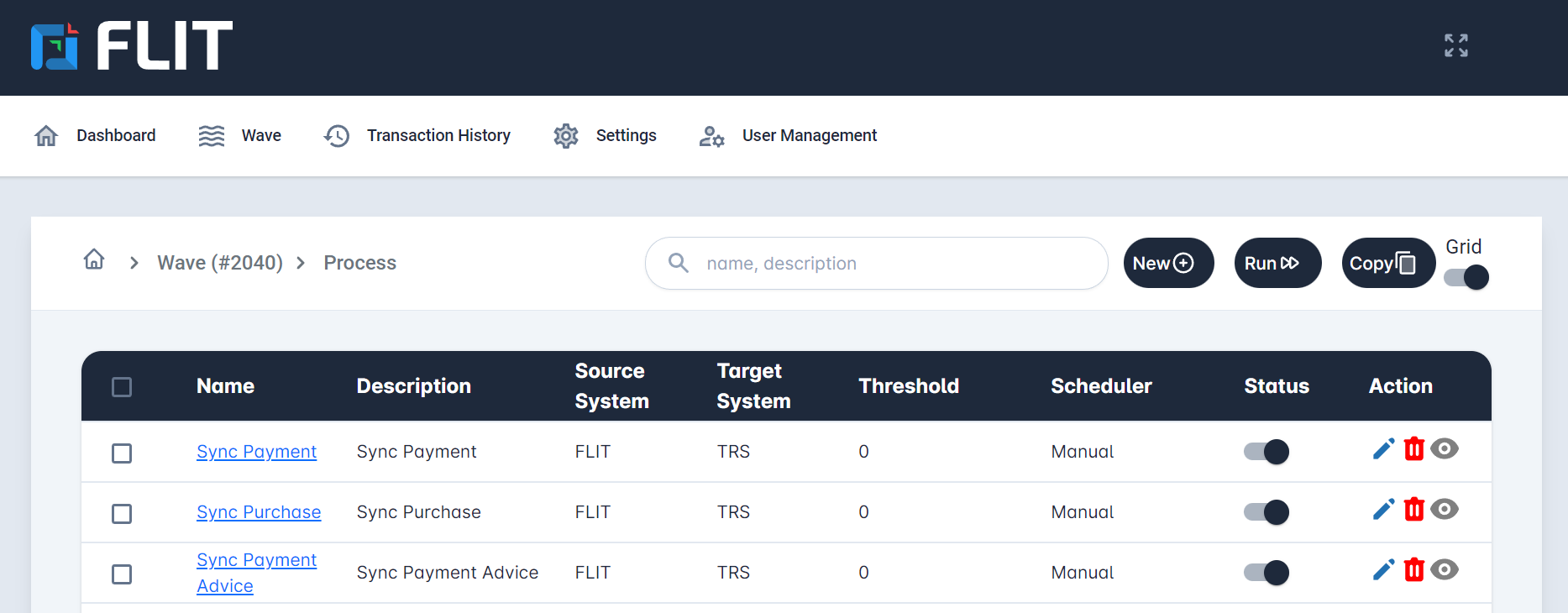
Section titled “Images”Place product screenshots in docs-site/public/images/mis/. Then reference them from Markdown using /images/mis/....
Markdown:
Bold, Italic, And Code
Section titled “Bold, Italic, And Code”Use bold for important UI labels, italic for light emphasis, and inline code for file names, values, or technical identifiers.
Example:
Click Run, select Daily, and confirm that the status changes to Completed.
Markdown:
Click **Run**, select *Daily*, and confirm that the status changes to `Completed`.Use Starlight asides for important callouts.
Markdown:
:::noteUse notes for useful information.:::
:::tipUse tips for recommendations.:::
:::cautionUse cautions for things users should check carefully.:::
Code Blocks
Section titled “Code Blocks”Use code blocks for JSON, SQL, API examples, configuration snippets, or command-line instructions.
{ "processName": "Customer Import", "status": "Completed"}Markdown:
```json{ "processName": "Customer Import", "status": "Completed"}```Suggested Page Structure
Section titled “Suggested Page Structure”Most MIS pages can follow this structure:
- Overview
- When to use this feature
- Before you begin
- Steps
- Field reference
- Examples
- Troubleshooting
- Related pages
Starter template:
---title: Page Titledescription: Short page summary.---
Briefly explain what this feature does.
## When To Use This
- Use case one- Use case two
## Before You Begin
- Requirement one- Requirement two
## Steps
1. First step.2. Second step.3. Third step.
## Field Reference
| Field | Description || --- | --- || Name | Description of the field. |
## Related Pages
- [Dashboard](/mis/dashboard/)- [Configuration](/mis/settings/configuration/)