
Dashboard
The dashboard gives users a quick view of process activity, flow status, schedules, configuration health, and recent execution results.
In the old HTML site, every page contained the full page layout, menu, header, footer, scripts, and then a small content area. In Starlight, this file contains only the page content. The layout, sidebar, search, table of contents, previous/next links, and mobile behavior are handled automatically.
Process Dashboard
Section titled “Process Dashboard”Use the Process dashboard to review process-level activity and quickly identify items that need attention.
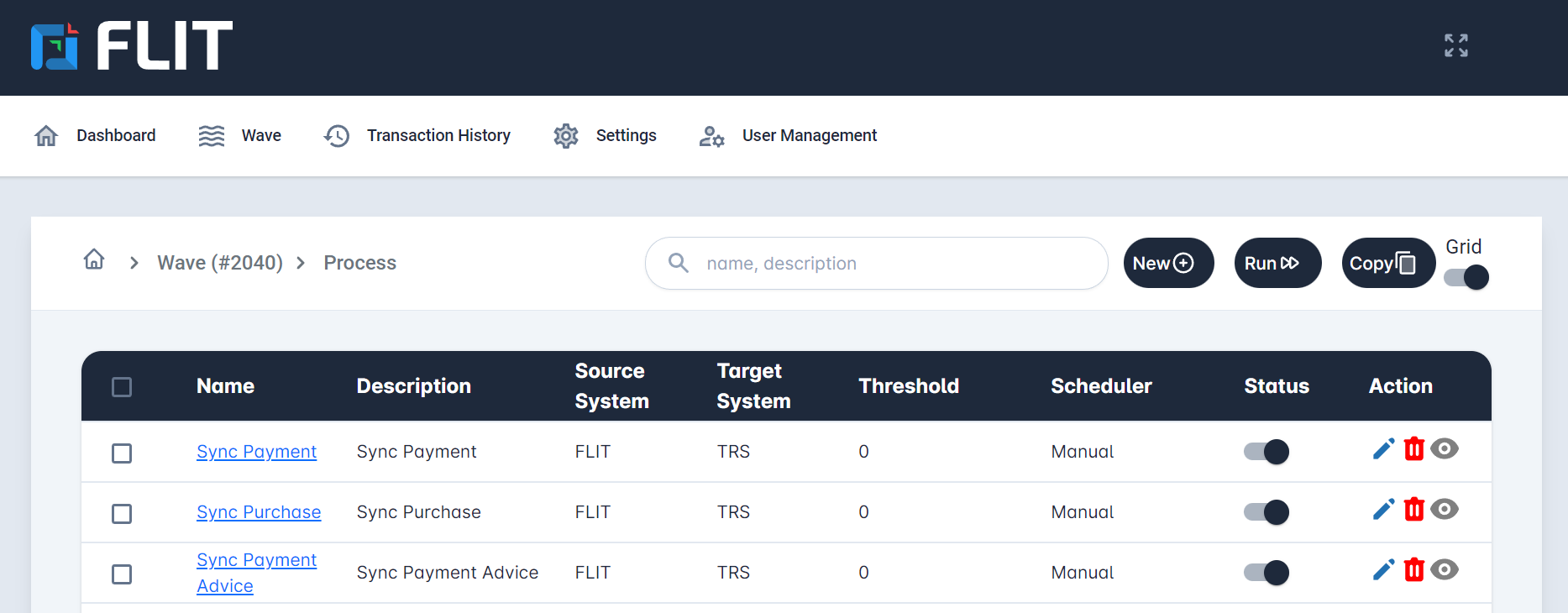
Typical process dashboard content includes:
- Process summary cards
- Active, completed, and failed process counts
- Recent process executions
- Process status indicators
- Navigation to process details
Dashboard Widgets
Section titled “Dashboard Widgets”Use tables when you need to compare fields, status, ownership, limits, or expected behavior.
| Widget | Purpose | Related Page |
|---|---|---|
| Process Summary | Shows active, completed, and failed process counts. | Dashboard |
| Flow Summary | Shows flow execution and service status. | Dashboard |
| Transaction Status | Shows recent execution results and failures. | Dashboard |
| Configuration Health | Highlights missing or invalid setup details. | Configuration |
For configuration-level investigation, open the Configuration page and review the latest setup details.
Flow Dashboard
Section titled “Flow Dashboard”Use the Flow dashboard to monitor flow execution and understand how configured services are connected.
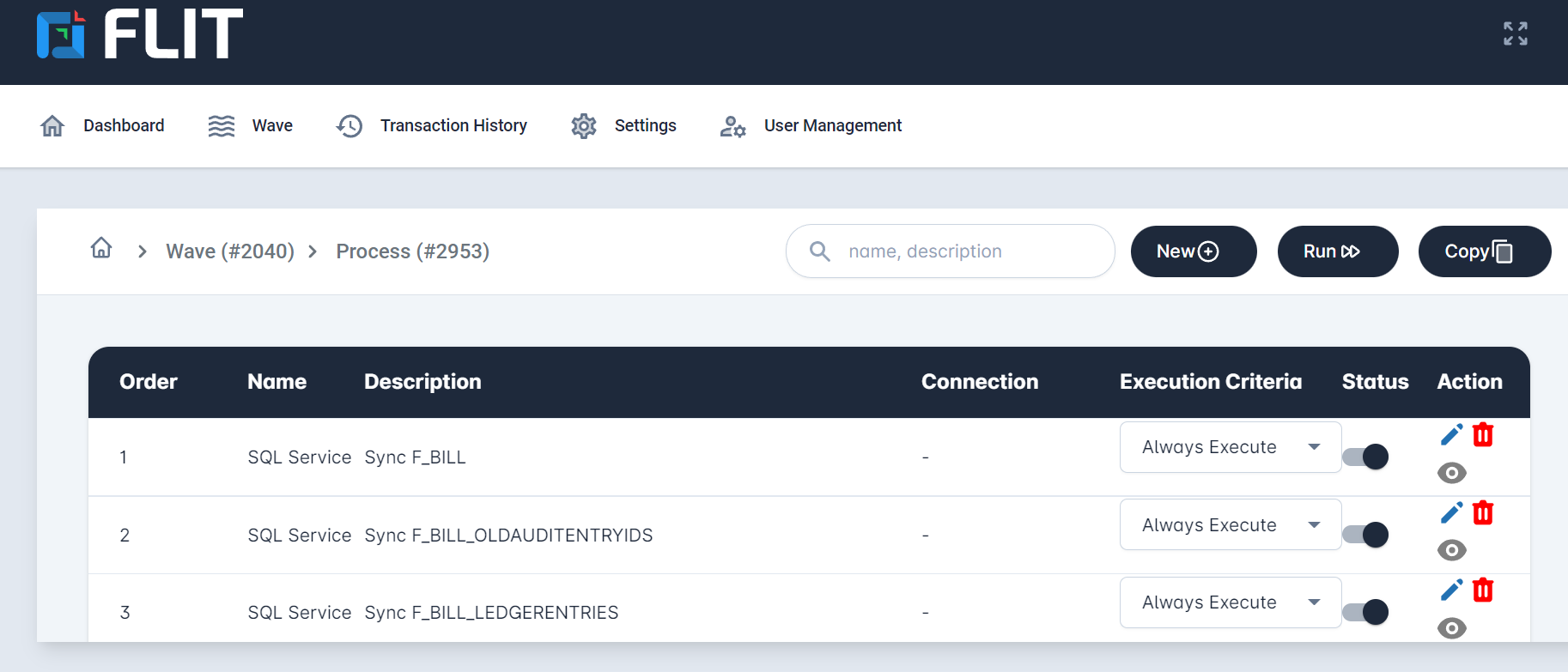
Typical flow dashboard content includes:
- Flow summary cards
- Flow execution status
- Service-level status
- Navigation to flow details
Configuration Dashboard
Section titled “Configuration Dashboard”Use the Configuration dashboard to confirm whether required settings and service configurations are ready.
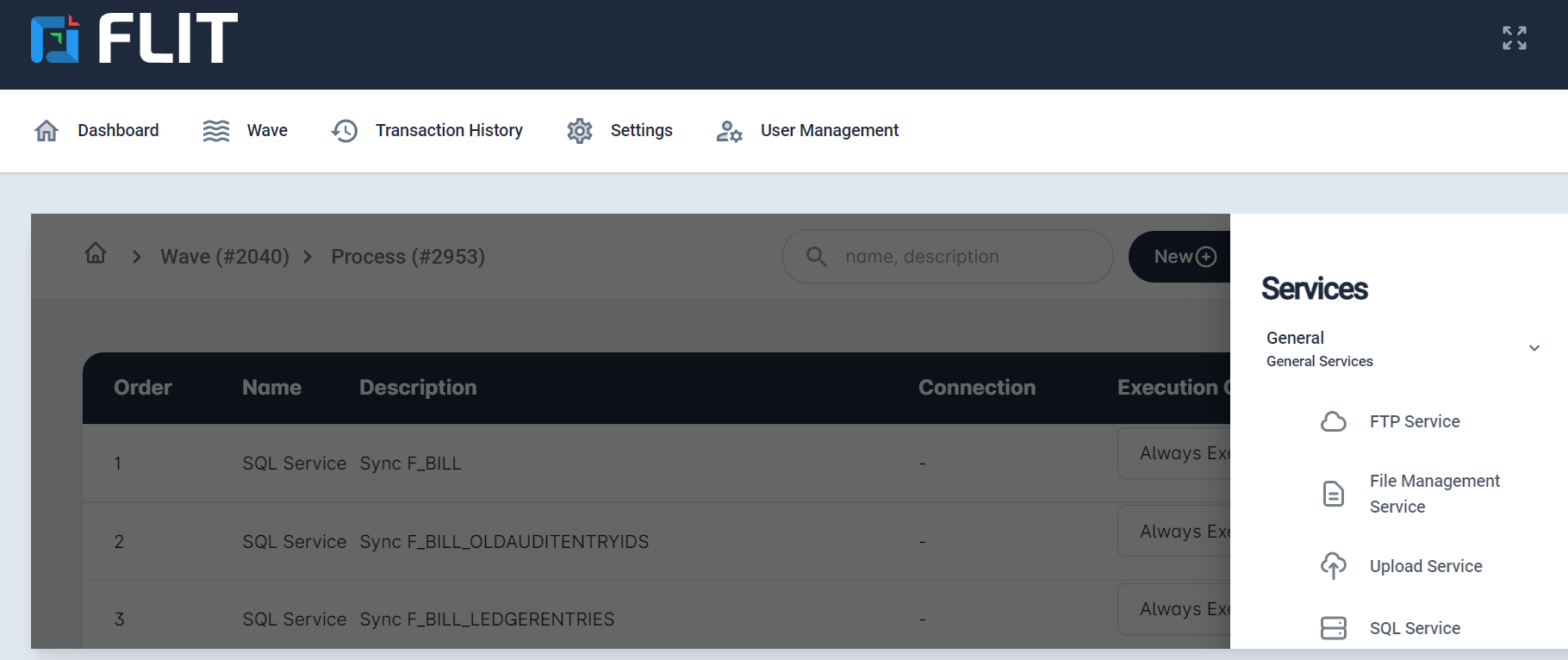
Typical configuration dashboard content includes:
- Configuration status
- Schedule status
- Error and warning indicators
- Quick links to update missing settings
Markdown Pattern
Section titled “Markdown Pattern”For normal documentation, write the content directly like this:
## Section Title
Explain the feature in simple language.

- Step one- Step two- Step threeTable example:
| Column A | Column B | Column C || --- | --- | --- || Value 1 | Value 2 | [Reference link](/mis/dashboard/) |Reference link example:
Read more in the [Dashboard documentation](/mis/dashboard/).If a special layout is ever needed, Markdown can also include normal HTML, but we should use that only when Markdown is not enough, please check once again.